
Many NiceSender users ask: why isn’t it possible to upload custom fonts directly into our email builder? In this blog post, we will explain the technical reasons behind this limitation in detail and cover the fonts available in the template builder by default.
Table of Contents
Why Can’t You Upload Custom Fonts In The Email Builder?
Email marketing is technically unique and comes with significantly more rendering restrictions compared to standard web development. The primary reason for this limitation is the inconsistent support for custom or web fonts across popular email clients (such as Gmail, Outlook, Yahoo Mail, and others).
For instance, while Apple Mail and iOS Mail offer robust support for custom typography, other major clients fall behind:
- Gmail (both on Android devices and the web interface) completely ignores external custom fonts connected via CSS and overrides them with standard fallback fonts (such as Roboto or Arial).
- Outlook for Windows, as well as Office 365 and Outlook.com, generally do not support web fonts and default to system fonts (or Times New Roman if fallbacks aren’t explicitly declared).
Attempting to force custom fonts without proper fallback setups leads to critical rendering issues, including:
- Broken email layouts and misaligned structural elements;
- Degraded visual design, particularly when a default system font replaces your custom typeface unexpectedly;
- Increased spam complaint rates, as subscribers are wary of poorly formatted or glitchy-looking emails;
- Loss of readability, such as unexpectedly tiny or overlapping text.
Fallback font: A backup font that an email client displays instead of your primary font if the custom typeface fails to load.
At NiceSender, we pay exceptional attention to the quality and rendering stability of your emails across all major inbox providers. For this exact reason, we have deliberately excluded the option to upload raw, external custom fonts directly into our drag-and-drop email builder.
Which Fonts Are Available In The NiceSender Builder?
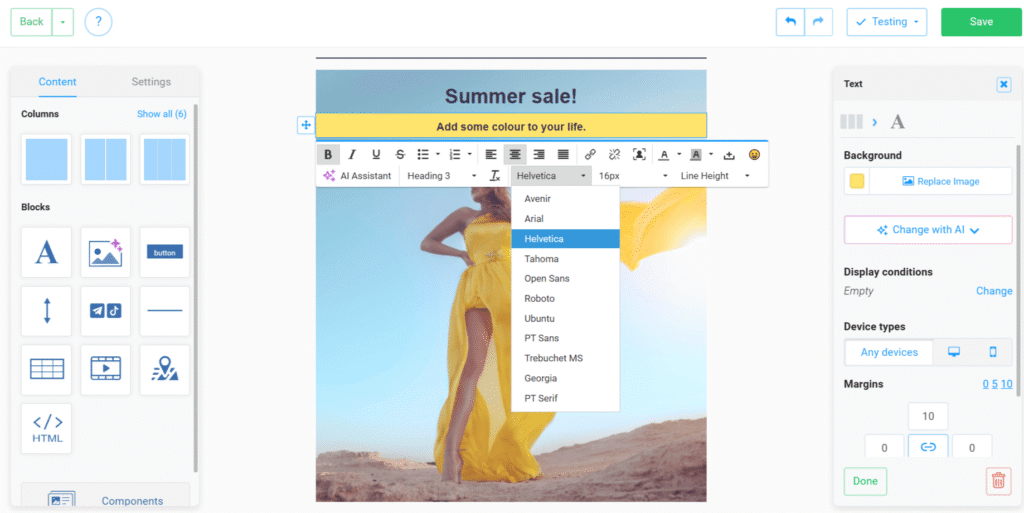
Currently, our email builder includes a curated selection of web-safe fonts configured with automatic fallbacks to native system fonts:
- Avenir
- Arial
- Helvetica
- Tahoma
- Open Sans
- Roboto
- Ubuntu
- PT Sans
- Trebuchet MS
- Georgia
- PT Serif
By using these web-safe options, you can rest assured that your email will render crisp and clean across all popular devices, operating systems, and email clients.
What Should You Do If You Absolutely Need A Custom Font?
For advanced users, NiceSender includes a full-featured HTML email editor. An experienced email developer or HTML email coder can implement custom fonts using Google Fonts, a secure CDN, or custom web hosting.
How To Add A Custom Font Using The NiceSender HTML Email Editor
Inside the HTML editor, you can link your custom web font using the @font-face rule within a <style> tag — which is widely considered the most reliable method for email rendering.
Here is a basic example of connecting a custom font:
<style>
@font-face {
    font-family: 'CustomFont';
    src: url('https://example.com/fonts/CustomFont.woff2') format('woff2');
    font-weight: normal;
    font-style: normal;
}

body {
    font-family: 'CustomFont', Arial, sans-serif;
}
</style>
However, when coding custom emails manually, it is crucial to keep key technical constraints in mind:
- Always test thoroughly: Preview your email across different clients (Gmail, Outlook, Apple Mail, Yahoo, etc.).
- Define reliable fallbacks: Always specify web-safe fallback fonts in your font stack to ensure proper display whenever a custom font is blocked.
- Maintain clean code: Avoid syntax errors and unnecessary external requests. Broken or insecure HTTP connections can trigger security filters and damage your sender reputation.
If you have the necessary HTML email development skills and your brand identity strictly requires custom typography, you can leverage the NiceSender HTML editor to embed web fonts manually. Just remember to send test emails before launching your final campaign.
Key Takeaways On Fonts In The NiceSender Email Builder
- Web-safe reliability: The drag-and-drop builder exclusively features stable, web-safe fonts configured with automatic fallbacks to native system fonts. This guarantees that your campaigns display consistently on every recipient’s device.
- Technical safeguards: Direct font uploads are disabled in the template builder because the majority of webmail and desktop clients do not support external fonts reliably.
- Flexibility for developers: You can manually integrate custom typography via the NiceSender HTML editor, provided you understand the technical nuances and perform cross-client testing.
- The Golden Rule: Whichever method you choose, always test your emails before sending to ensure your content is easy to read and looks professional.